ESP32 Won’t Flash? Fix “Failed to Connect” and esptool Errors
Find the failing stage—USB detection, download mode, serial communication or transfer—and use targeted checks for development boards and custom ESP32 hardware.
In This Article
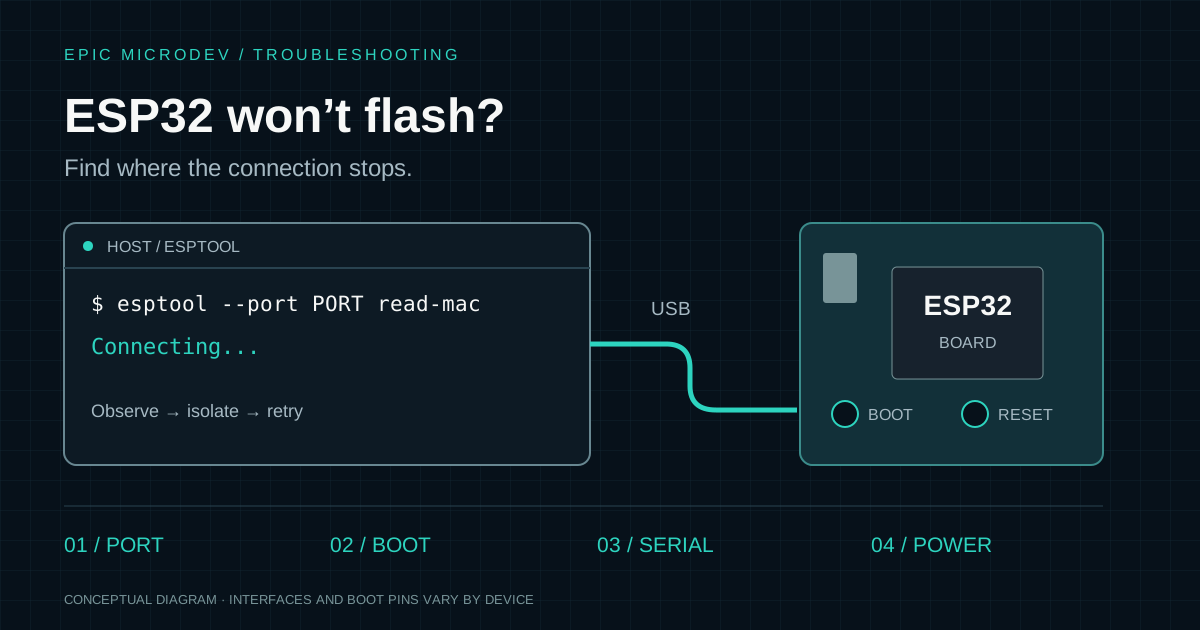
A serial port can appear normally while an ESP32 upload still fails. Start by identifying where communication stops: the host opening the port, the chip entering download mode, the first reply, or the transfer itself. Work through the quick checks, then follow the exact error instead of repeatedly reinstalling tools.
Identify your chip variant and which USB connector you are using. A USB-to-UART bridge and a chip’s native USB interface have different reset and driver behaviour. The checks below distinguish them; pin numbers and electrical requirements must match your board’s schematic and chip documentation.
1. ESP32 flashing quick checklist
Change one variable per attempt and keep the complete upload log. Record the board marking, port, interface, tool version and whether any bytes transferred. A transition from silence to a boot-mode error is progress: it tells you the host can now hear the chip.
2. Find your exact esptool error
Read the first specific error above the IDE’s final “upload failed” message. These error meanings follow Espressif’s troubleshooting guidance; the suggested comparisons help isolate the failing stage on your bench.
Failed to connect to ESP32: No serial data received
Esptool has received no useful response. Reconfirm the port, substitute the cable, then try manual download mode. If still silent, inspect reset and power; on external adapters, check both UART connections and ground. A detected USB bridge alone does not prove the ESP32 is running.
Wrong boot mode detected
A boot message arrived, but the chip did not enter the required loader. Try the BOOT/reset sequence below. If that succeeds, investigate strap levels and automatic reset.
Download mode successfully detected, but getting no sync reply
Chip-to-host communication works, but the chip is not answering host requests. Focus on host TX → ESP RX: continuity, logic level, bridge output and anything driving that net. Receiving a boot log does not prove this direction works.
Invalid head of packet
Suspect corrupted communication or a reset during transfer. Reduce UART speed, shorten leads, substitute the cable or adapter and check supply stability. Remove the board from suspect breadboard wiring.
A serial exception error occurred
The host cannot reliably operate the port. Check ownership, permissions, drivers and whether the device disconnected or changed port name.
Failed to write to target RAM
The loader transfer failed; this does not by itself establish damaged RAM. Compare a shorter USB path, another bridge/driver and stable power. The ROM-only diagnostic below helps separate stub loading from initial communication.
If transfers fail at different percentages, investigate power and link stability first. If failure is repeatable at the same operation, retain that detail and compare the tool’s full log before blaming flash memory.
3. Enter download mode and understand the signals
On a development board with documented BOOT and EN/RESET buttons, try this sequence:
- 1. Hold BOOT.
- 2. Press and release EN/RESET while keeping BOOT held.
- 3. Release BOOT after reset.
- 4. Start the diagnostic command.
If your uploader resets the board again, keep BOOT held through its Connecting stage, then release once communication begins.
Button names and timing differ. Some boards have no reset button or expose two USB connectors. Follow the board guide, and reselect the port if entering download mode creates a new USB device. The no-reset command below lets you test a manually prepared UART connection without esptool’s usual reset sequence.
GPIO0 / BOOT: check the chip family
Bootstrapping pins are sampled during reset. On the original ESP32, pulling GPIO0 low selects the ROM serial loader; GPIO2 must also be low or floating. ESP32-S2/S3 use GPIO0 low with GPIO46 low or floating. C3/C6 use GPIO9 low, with GPIO8 high for reliable download entry. Check all straps for the exact chip: BOOT is a function, not a universal pin number.
- Espressif: ESP32 boot selection and automatic reset
- Espressif: ESP32-S2 download-mode straps
- Espressif: ESP32-S3 download-mode straps
- Espressif: ESP32-C3 download-mode straps
- Espressif: ESP32-C6 download-mode straps
EN / RESET, TX/RX and DTR/RTS
EN, also called CHIP_PU on relevant devices, enables the chip; taking it low resets/disables it. For a UART connection, connect adapter TX to the chip’s documented receive pin, adapter RX to its transmit pin, and ground to ground. Confirm pin names from the schematic rather than crossing wires solely by connector labels.
Common USB-UART development boards use the DTR and RTS control outputs through an auto-reset circuit to sequence the download strap and EN. These active-low signals are separate from TX/RX. A custom board can exchange serial data yet fail automatic programming because its transistor network or reset timing is wrong.
Native USB is a different path
On supported chips, USB Serial/JTAG or USB-OTG download can bypass an external UART bridge. Do not apply a CP210x driver fix or UART pin diagnosis to that path blindly. Firmware that changes USB pin usage or enters sleep can affect availability; manually entering the ROM loader may restore access. After a successful manual download, release BOOT and use the board’s reset procedure if the application does not start.
4. Arduino IDE, PlatformIO and direct esptool
Arduino-ESP32 and common PlatformIO ESP32 serial-upload workflows invoke Espressif tools underneath. Compare their actual upload command and output. A build error occurs before board communication; changing BOOT cannot fix compilation. Conversely, changing application code rarely explains why an external UART bridge cannot open.
- Arduino IDE: select the matching board and port, close Serial Monitor, enable verbose upload output and lower Upload Speed where the board menu offers it. Native-USB upload options depend on the board and core version.
- PlatformIO: check the active environment and its board, upload_port and upload_speed settings. Close its device monitor before retrying. Add the following lines inside your existing environment, using your actual port.
- Direct esptool: run a read-only identification command with the same hardware. If it works while the IDE fails, compare executable versions, port selection, reset method and upload arguments before changing hardware.
; Inside the existing [env:...] section of platformio.ini
upload_port = /dev/ttyUSB0
upload_speed = 115200
An IDE can bundle a different esptool release from the one on your terminal’s PATH. An unrecognised command or option is a tool-version issue, not evidence of a dead chip. Keep the toolchain version in the diagnostic record rather than replacing its bundled executable at random.
For the broader choice of platform and development workflow, see our MCU comparison. Changing microcontroller families is not a troubleshooting step for a broken upload connection.
5. Useful esptool diagnostic commands
These examples use modern esptool v5-style hyphenated commands, checked against the official documentation. Run them in the environment where esptool is installed. Replace every example port with the device you identified. Identification commands do not erase or program flash, although connecting normally resets the board and can load a temporary RAM stub.
esptool --help
esptool --port /dev/ttyUSB0 read-mac
esptool --port /dev/ttyUSB0 flash-id
The connection output identifies the detected chip; read-mac reads its built-in MAC address. flash-id queries the external flash identity and detected capacity. If identification succeeds repeatedly, move on to the project’s normal upload and record where it first differs. Do not assume a successful short query proves a long transfer is stable.
Windows example, using your actual COM number:
esptool --port COM3 read-macmacOS example, substituting the complete /dev/cu.* device name:
esptool --port /dev/cu.usbserial-0001 read-macTo lower UART transfer speed and capture protocol detail:
esptool --port /dev/ttyUSB0 --baud 115200 --trace flash-idGlobal options go before the command. Chip detection is automatic unless overridden; only add --chip esp32s3, for example, after identifying an S3. A high configured baud rate is used for later transfer, while initial UART synchronisation is limited to 115200. Try --baud 9600 for a marginal UART link; baud changes are not an equivalent speed control for native USB.
# After manually entering download mode; bypass auto-reset and the RAM stub
esptool --port /dev/ttyUSB0 --before no-reset --no-stub read-mac
This uses the ROM loader directly. Success here narrows the investigation toward reset sequencing or later stub transfer, but ROM capabilities and provisioned security restrictions vary. Preserve the full trace locally; inspect it for device identifiers or sensitive data before sharing. Do not use erase-flash, force options or eFuse changes as generic connection fixes.
6. Windows: verify the actual COM device
Open Device Manager and compare the device list before and after unplugging the board. Check Ports (COM & LPT) and devices with warning icons. Use the newly appearing COM number, not a remembered one. A native USB loader may enumerate separately from the running application.
Identify the bridge from the board documentation or hardware IDs before installing a driver. CP210x, CH340 and FTDI-type bridges use different drivers; a native USB interface may need none of those. Use Windows Update, the board vendor’s instructions or the silicon vendor’s official download—not a generic driver-download site.
If the port exists but cannot open, close other serial tools and retry after unplugging/replugging. If it disappears during upload, watch Device Manager while substituting the cable and USB port. Record whether the bridge vanishes or only chip communication stops; those observations lead to different tests.
7. Linux: detection, permissions and port ownership
Compare devices before and after connection. USB-UART bridges often appear as ttyUSB devices; USB communication interfaces may appear as ttyACM. A missing glob match only means no device of that naming pattern exists. Watch kernel messages while reconnecting; some distributions restrict access to dmesg. Press Ctrl+C when you have captured the messages.
ls /dev/ttyUSB* /dev/ttyACM*
ls -l /dev/serial/by-id/
dmesg --follow
If access is denied, inspect the actual device owner/group and your session’s groups. The optional by-id directory can help identify an adapter consistently. Kernel permission errors and a device disconnect are different faults; group membership will not repair a failing USB connection.
# Substitute your actual device
ls -l /dev/ttyUSB0
id -nG
lsof /dev/ttyUSB0
fuser /dev/ttyUSB0
lsof and fuser, when installed, identify processes using the port; permissions can limit what they show. Close the identified monitor or application normally. If a background device-management service is interfering, confirm that in logs and use distribution guidance for a targeted exception instead of disabling services indiscriminately.
On distributions where the device belongs to dialout, an administrator can add your user as below. Other distributions use groups such as uucp or different access policies: use the group actually required. Log out fully and back in, then reopen the IDE. Do not grant blanket world-write permissions or run the whole IDE as root.
# Only if dialout is the appropriate serial-access group
sudo usermod -aG dialout "$USER"
If the IDE runs in a container, remote session or sandbox, the port must also be made available to that environment through its supported device-access mechanism. A port visible on the host is not automatically visible inside it.
8. macOS: select the complete callout-device name
ls /dev/cu.*
# Substitute the device you found
lsof /dev/cu.usbserial-0001
Compare the /dev/cu.* list before and after connection; native USB devices may use a usbmodem name instead. In System Information → USB, check whether the hardware enumerates at all. If it does not, try the cable, direct USB connection and another adapter before changing serial settings. Close any application holding the port, and follow the board vendor’s instructions if its identified bridge requires a driver.
9. Custom ESP32 PCB: check the electrical path
Compare your schematic and assembled board with the reference design for the exact chip or module. Mark which nets belong to the USB bridge, reset circuit, download straps and supply. Treat the following as measurements to plan, not evidence that your board has already passed a test.
EN and the download strap
Check EN’s pull-up, reset switch and resistance-capacitance timing network against the relevant hardware guide. Observe EN at the chip during manual and automatic reset: does it go low cleanly, then rise after the supply stabilises? A static high reading cannot reveal a short unwanted reset pulse.
Observe GPIO0—or the variant’s actual download strap—at the same reset event. Check pull resistors, fitted component values and peripherals that can override them. On the original ESP32, other straps include flash-supply selection; an unexpected GPIO12 level can affect a board using 3.3 V flash. Do not transfer that pin rule to other families.
UART and the USB-UART bridge
With power removed, check continuity from bridge TX to ESP RX and bridge RX to ESP TX, plus connector orientation, ground, solder joints and shorts. UART means logic-level serial here, not an RS-232 electrical interface. Confirm the bridge’s I/O supply and the chip’s permitted levels; a 5 V USB input does not make ESP pins 5 V tolerant.
CP210x, CH340 and FTDI-type parts are useful examples, not interchangeable footprints or power supplies. Confirm the exact bridge variant’s supply, support circuitry and driver. If TX activity reaches the board connector but not the MCU pad, follow that net through resistors, level shifters and connectors before replacing software.
DTR/RTS automatic reset
Compare DTR, RTS, EN and the boot strap on one capture. Check transistor pinouts, orientation and the circuit’s truth table, including the state when both control signals are asserted. Verify that the strap is valid when reset releases. Copying component values without checking timing and transistor connections can leave a board that only programs manually.
Manual BOOT works but automatic uploads fail? Keep the same cable, supply and command while comparing the two attempts. Investigate DTR/RTS sequencing, the selected interface and the reset circuit before reinstalling the toolchain.
Power and signal integrity
Check the 3.3 V rail at the module during connection and transfer, not only at the regulator with no load. Review regulator capacity, dropout, decoupling placement and return paths. Brownout, reset activity and peripherals drawing transient current can interrupt communication. An adapter’s 3.3 V output is not automatically suitable for powering the complete board.
Use the documented power arrangement; avoid back-feeding supplies through USB or signal pins. Keep UART wires short with a reliable ground return, remove marginal breadboard contacts and inspect USB routing on native-USB designs. A lower UART baud rate that consistently works is evidence of limited link margin, not proof the production design is sound.
Perform continuity checks unpowered. Probe only accessible low-voltage points with suitable equipment and a verified ground reference. If the assembly includes mains or other hazardous circuitry, isolate it and use qualified assistance. Disconnect power if a component heats unexpectedly.
10. Troubleshooting decision tree
Choose the branch that matches the earliest failure. Follow the arrows until an observation changes; then repeat the identification command before adding firmware or peripherals back.
On smaller screens, scroll horizontally to read all three columns.
| Symptom | First area to investigate | Evidence to retain |
|---|---|---|
| No serial port | Cable, USB detection, driver or bridge | Device list before/after connection |
| Port exists, no response | Download mode, reset, UART and power | Boot output and manual-entry result |
| Wrong boot mode | Variant-specific strap levels at reset | Boot-mode message and reset capture |
| Manual BOOT works | Auto-reset sequence and circuit | Same command with/without auto-reset |
| Random packet errors | Baud rate, wiring, cable and supply | Trace and results with a known-good link |
| Transfer stops midway | Power or communication stability | Failing phase, reset evidence and repeatability |
11. Is my ESP32 dead?
A connection error is not a hardware-damage diagnosis. Check the documented supply rails, EN state, available serial boot messages, manual download entry and both UART directions. Compare with a known-good cable and, where appropriate, another computer or correctly configured USB-UART adapter. Keep the rest of the setup unchanged so each substitution answers one question.
Current draw and unexpected heating can support a hardware investigation, but there is no universal pass/fail current for every board. Damage becomes more plausible after correct power, reset, straps and a known-good communication path have been established, especially with a shorted rail, visible damage or abnormal heating. No boot log alone is insufficient: output can be disabled, rerouted or unavailable on the chosen interface.
For previously provisioned production devices, check the security configuration with the product owner. Download functionality can be restricted intentionally. Do not change permanent eFuses or bypass security protections to see whether a connection error disappears.
Official references
Command syntax and hardware guidance checked against official documentation on 1 October 2026. Use the chip selector and the documentation matching your installed toolchain. These are diagnostic procedures, not claims of tests performed on your board.
- Espressif: esptool error meanings and troubleshooting
- Espressif: ESP32 boot selection and automatic reset
- Espressif: current esptool commands
- Espressif: port, chip and baud-rate options
- Espressif: reset control and ROM-only operation
- ESP-IDF: serial connections and operating-system setup
- ESP-IDF: ESP32-S3 USB Serial/JTAG behaviour
- Espressif: ESP32 schematic checklist
- Espressif: ESP32 PCB layout guidance
Keep the next test specific
Classify the failure as host detection, download-mode entry, serial communication or data transfer, then check power and signal integrity at that boundary. Save the before-and-after result of each change. On custom hardware, a repeatable manual-versus-automatic reset comparison and a measured electrical path are more useful than another round of software reinstalls.
Developing a custom ESP32 or connected product? Epic Microdev can help with firmware, board bring-up and hardware integration. Bring the schematic, chip and bridge identifiers, complete upload log and the checks already performed so the next engineering step can be specific.